Quarterly Workday Insights – May 2026
Our Quarterly Workday Insights newsletter provides information on important topics, including upcoming changes, reminders, and helpful reports. Review each of the sections below to learn more. You can also visit our Workday page any time to stay up to date.
If there are any topics that you would like to have covered, please create a Workday Help case to let us know!
What’s New
Compensation Legislation in Virginia
Liberty University is committed to fair, equitable, and competitive compensation practices that reflect our mission and responsible stewardship. As part of this commitment, the university is adopting new Virginia legislation SB 215/HB 636, effective Wednesday, July 1, 2026, which strengthens pay transparency by requiring employers to include a good‑faith pay range in job postings and limit the use of prior salary history.
This update does not change Liberty’s compensation philosophy. Instead, it reinforces principles we already follow, ensuring compensation decisions are made consistently and based on job‑related factors, such as role responsibilities, experience, skills, performance, and market considerations.
What this means in practice:
- When screening or interviewing candidates, avoid seeking out a candidate’s salary history.
- Encourage open and respectful conversations that support pay transparency by focusing on the factors and principles that guide compensation decisions rather than comparisons between individuals.
- Support growth and development within an employee’s role by focusing on skills, performance, and career progression, and connect with the appropriate division leader when compensation‑specific context or guidance is needed.
Our compensation philosophy continues to guide how pay decisions are made across the university, emphasizing:
- Fairness and internal consistency
- Market‑competitive pay practices
- Responsible use of university resources
- A total-rewards approach that values more than base pay alone
Employees are encouraged to explore Liberty’s compensation philosophy to better understand how compensation decisions support our broader mission and values.
We recognize that pay conversations can be complex. To support leaders with compensation‑related responsibilities and pay transparency requirements, Human Resources will provide manager‑focused guidance and resources to support consistent, informed pay‑related discussions. More information will be shared as these materials become available.
Workday Location Updates
To better clarify work location descriptions within Workday, location options have been updated to four distinct categories, as follows:
Onsite: Employee’s position requires full on-site presence; remote work is not an option. Resident state (HR/Payroll address) and on-site location would drive taxes. If employee’s HR/Payroll address is a non-Virginia address this could result in double taxation depending on whether state reciprocity agreements exist.
Onsite – Remote Capable: Employee has the ability to work remotely, only working remotely from approved locations on rare or exceptional occasions. If employee’s HR/Payroll address is a non-Virginia address this could result in double taxation depending on whether state reciprocity agreements exist.
Hybrid: Employee regularly splits time between remote and on-site work on a weekly cadence. If employee’s HR/Payroll address is a non-Virginia address this could result in double taxation depending on whether state reciprocity agreements exist.
Remote: Employee works entirely from home or an approved remote location, with no ongoing requirement to report onsite, unless otherwise dictated by the role. The employee is taxed according to their HR/Payroll address only.
The new location updates went into effect starting March 27, 2026. When hiring or transferring employees, you will be prompted to select one of the updated options.
Quick Reminders
Terminating Student Workers
At the end of each semester Human Resources sends out an email to HR Analysts and Managers of student workers requesting that terminations not be submitted the week prior to or the week of finals. This system avoids students losing access to their account in the midst of their finals preparation.
This year, those dates were May 1–15. If you have not yet submitted your student’s termination, please process it as soon as possible. Their termination date and last day of work should reflect the last day they clocked in.
For assistance with the termination process, please reference our termination knowledge article. If you need a termination date corrected, submit a Workday Help case.
Termination Checklists
When filling out a Termination Checklist, please be sure to indicate the correct date and time that the employee should lose access.
For example, if Daisy Duck’s last day will be June 12, 2026, the ServiceNow ticket should have the effective termination date as June 12, 2026, at 11:59 p.m. (23:59:00) or 5 p.m. (17:00:00). This time stamp indicates to IT that this employee is still working on June 12 and will not need to lose permissions until the end of the day. If you put June 12 at midnight (12 a.m.), this will be read as though Daisy Duck’s permissions should go away at the beginning of the day.

If an employee loses access on their last day of work, their supervisor will need to call the IT Helpdesk at (434) 592-7800 to request that their employee’s permissions be turned back on until the end of the day. The affected employee cannot make this request.
You may submit a Termination Checklist ticket up to 1 week before an employee’s effective termination date.
IMPORTANT: During the termination process, all employee accounts will typically be locked for 3-4 days following their termination while IT completes the ticket. This includes student workers. Access to their LU email, MyLU, and Canvas will be temporarily blocked. Please let your student know ahead of time that their account will be locked for a few days after their termination date so they can prepare to turn in assignments, answer emails, etc., accordingly.
Did You Know?
Workday Mobile for Approving Business Processes
Did you know you can use the Workday mobile app to quickly approve your inbox tasks? Using the app, you can quickly view tasks awaiting your action, allowing you to approve time off requests between meetings or review hire details while you’re away from your computer.
Instructions and an FAQ on the Workday mobile app can be found here.
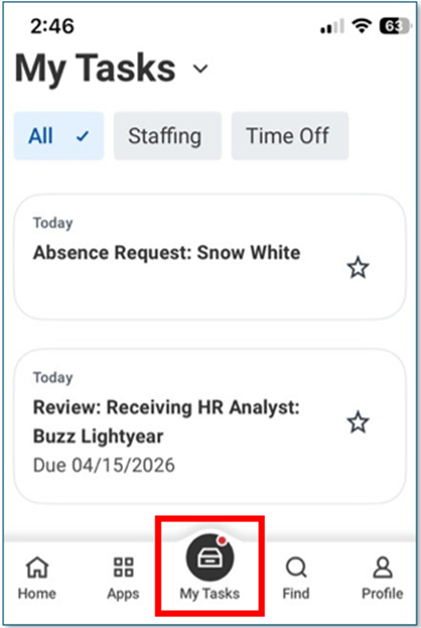
Open the Workday app and click your inbox on the bottom of your screen to view your tasks.
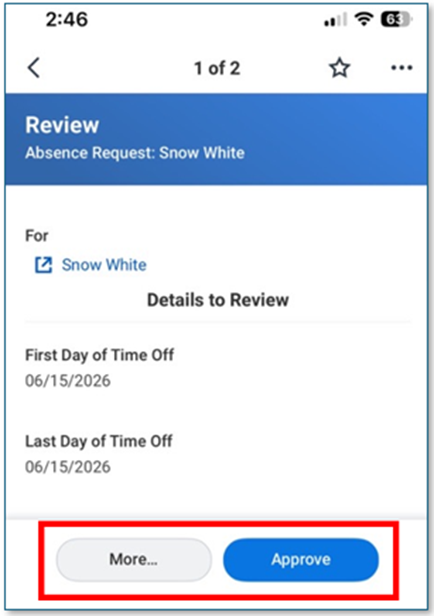
Click on any of your tasks to review and approve as needed.
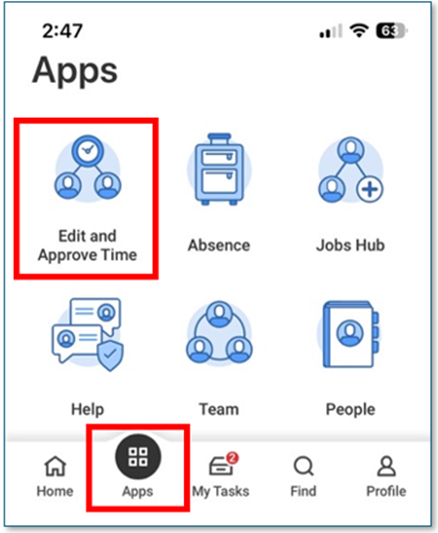
To approve your hourly employees’ time sheets from the Workday app, go to the Apps button on the bottom of your screen and select Edit and Approve Time. This process is similar to the one on your desktop, where you can select the week and supervisory organization you would like to approve.
Delegation
Planning time away from work? Workday Delegation makes it easy to ensure approvals and tasks continue without interruption while you’re out of the office. A delegation allows another employee to submit and approve tasks on your behalf for a specified time period, helping maintain smooth business operations.
Read this knowledge article to learn how to request a delegation through a Workday Help case and how delegates can access and complete assigned tasks using the “Switch Account” feature. It also highlights important considerations, like security role requirements and communicating expectations with your delegate.
We hope you can relax on your next vacation knowing your team’s tasks aren’t piling up while you’re gone!
Knowledge Article Spotlight
Understanding Liberty’s Organizational Chart
Ever wonder how different teams and departments are structured at Liberty? The article below walks you through the university’s organizational chart (org chart) in Workday and explains supervisory organizations (sup orgs), including what they are, how to find them, and how teams connect across the university. You’ll also pick up helpful tips for navigating the different ways to view the org chart.
Read the full knowledge article on navigating the org chart.
Past Quarterly Workday Insights can be viewed here: