Images
Images can make your web page more visually appealing, and add interest and information that text alone can’t. Sometimes, “a picture is worth a thousand words.”
Finding Images for Your Site
If you need an image to go on Liberty’s website, an excellent place to start is with the University Marketing Department. Our professional photography team may have already captured the perfect image for your needs. Your marketing project coordinator can help you find the image or schedule a photoshoot, when appropriate.
Don’t go to Google and download the first image that you like. It might seem like a fast and easy solution, but you could be violating copyright laws. Copyright violation fines are real and stealing is just plain wrong. In most cases, whoever made the image owns it. The Jerry Falwell Library has excellent information about copyright laws, such as how the law applies to multimedia use, including online photographs.
Stock Images
We don’t recommend using stock photography on Liberty’s websites, but there are limited exceptions. For instance, if it’s for a blog post, you might need something beyond what you or Liberty photographers can provide. This is when people are sometimes tempted to download whatever they like from the web. Remember, if you didn’t take a photograph, you need to have the creator’s permission to use it.
The good news is there are plenty of sites that offer free photographs that you can use on the web. Many don’t even require attribution. The bad news is that the photo you choose might be on someone else’s website too, so use stock photography sparingly. Here are a few sites you can try:
- Pixabay – A popular site for free, modifiable photos without attribution requirements.
- Flickr – You can search based on the type of copyright licensing (attribution required or not, modifiable or not.)
Adding Images to Your Site
Before uploading images to your site’s Media Library, remember to:
- Size and optimize your images for the web (check out our Preparing Images for the Web tutorial for tips)
- Give your image a good file name by following our file naming rules
Image Alignment
The way an image is used on a page can either distract the user from the page’s content or enhance what is already there. Here are a few tips to ensure the image is added with
When adding an image next to text, you might think it will be complicated to get the text to wrap around the image. This is easily done without adding tables or paragraph breaks – it’s just a few clicks!
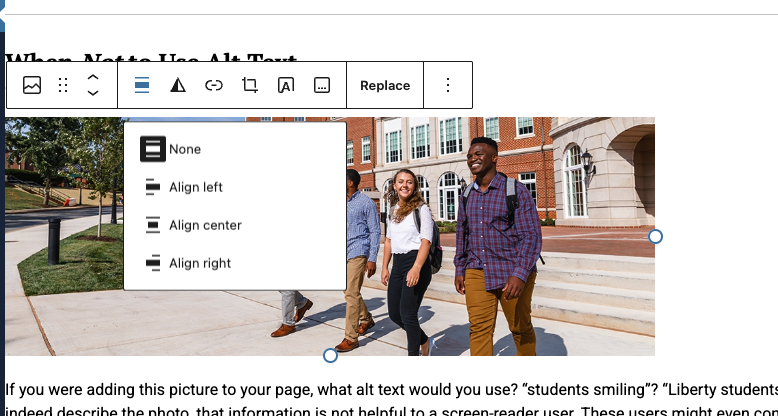
- Select the image and choose the alignment icon from the block toolbar.
- Images can be left, center, right aligned, or have no alignment. The default setting when an image is first added to a page is no alignment or “none.”
- Clicking on an alignment will automatically bring the image to the selected side of the page, adjusting any text around the image with an even margin.
Make your Images Accessible
People with vision problems often use screen readers to tell them what is on your web page. Screen readers can tell if an image exists, but they can’t get any value from the image unless you add alt text to let them know what it’s about. If the image is purely decorative, it’s OK to leave the alt text blank.
For more information, see How to Use Alt Text Properly.
Avoid Placing Pertinent Text in Images
Here’s why we say that text should not be put in images on the web:
- Search Engines cannot find it – your page will not return results for that text.
- Screen Readers cannot read it – users with disabilities will not know it’s there.
- Consistency on Liberty’s website will be lost when everyone has very different text images on their pages.
When the text performs a function, such as a header or title, it should not be in an image because it needs to be searchable for Search Engine Optimization (SEO) and available to users with screen readers. Neither of these can happen when text is buried in an image.
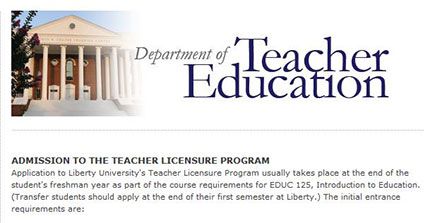
In this example, the text in the image is taking the place of a proper text header, so the page only has an image and body copy.
Images are great for adding visual appeal to a page, and sometimes it is also okay if they have some text in them that only adds design appeal and does not take the place of pertinent text.

In this example, the text in the image is for decorative appeal, it is not taking the place of the proper page header, which is still at the top of the page as it should be.