WordPress
Additional Navigation
WordPress User Resources
- Read through our WordPress Manual to learn how to get started with WordPress.
- Visit our WordPress Tutorials page for video tutorials on using the WordPress Editor and its custom tools.
- Check out Web Accessibility for basic guidelines on making the web more usable for everyone.
- Keep your site up-to-date by following our web maintenance procedures.
- Learn more about maintaining files in your media library and using images on your webpages.
- Follow our web writing tips.
WordPress Tips & Tricks
Previewing Pages
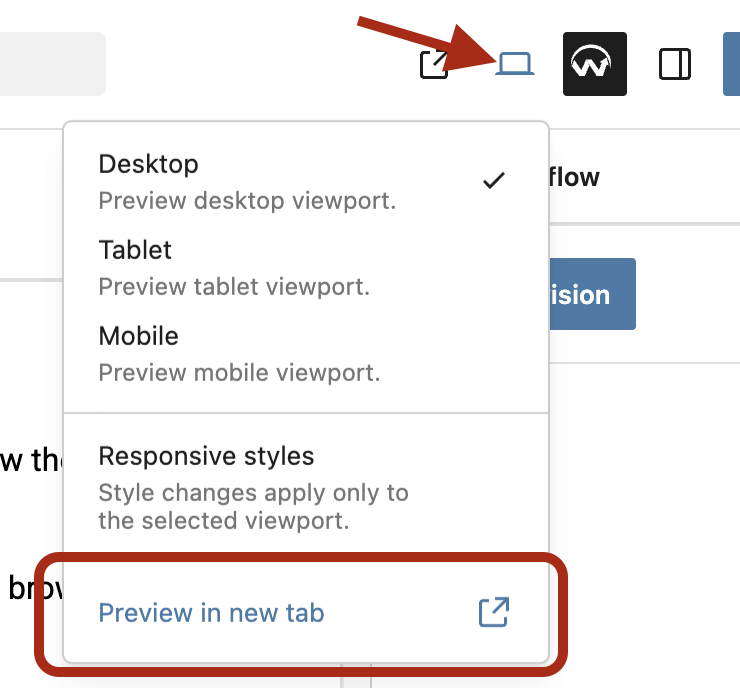
After making edits to your page or creating a new page, it’s a good practice to always preview how the page will look once it’s made live. To do this, click the Preview icon in the top toolbar and choose “Preview in a new tab.”
This will generate a front-end preview of the page with the changes you’ve made. Now, you can resize your browser window, making your browser window smaller, to see how the page will look for our tablet and mobile users.
Remember, the page may look great at its full-size, desktop view. But check to make sure your mobile users will also be able to easily navigate the page.
Soft Returns
To move to the next line or paragraph, you’d normally press the ENTER key on your keyboard. But, what if you want a line break without as much space between it and the line above?
Holding down the SHIFT key and ENTER key at the same time will create what’s called a soft return. A soft return takes you to the next line without starting a new paragraph. There is no extra space added between the two lines. You can also use a soft return in lists – jumping to the next line without creating a new list or bullet item.
Copying Links from an Email
Watch out for Safe Links!
When you add a link to your webpage, it’s important to make sure that you copy the link URL directly from the address bar instead of copying from an Outlook email. Due to security measures in Outlook, links are rewritten into a Microsoft Safe Links format.
When adding the link to your webpage, you want to use the real URL address and not the Safe Link version. Using Safe Links can negatively impact SEO and cause slower load times as the link has to redirect users to the correct address.
To avoid this, you can simply follow the link first, wait for the page to load, then copy the URL from the address bar, using this URL for your on page link.
Opening Links in a New Tab
When creating links in your webpages in WordPress, by default the new page is set to open in the same window. When the user visits your page and clicks on a link, the view changes from the original page to the new view of the web page the link opened. If the user wishes to return to the previous page, they use the BACK button.
But there is also the option when creating links to have the new page open in a new window. Then there are two browser windows open – one with the original page and one with the page the link opened.
Which way is better? It depends on what you’re linking to.
In tests of user behavior, it has been shown that users prefer to use the BACK button when browsing. That way their desktop does not get cluttered with new windows. They can navigate back and forth through the web pages like the pages of a book.
From an accessibility compliance perspective, opening links in new tabs can negatively impact a site’s usability. Standard best practice is to open links in the same tab unless a user will need to refer to the first page in order to complete a task on the page in the new tab.
See Jakob Nielsen and Anna Kaley’s article Opening Links in New Browser Windows and Tabs for further explanation.
When to Use a Button
Buttons are less about decoration, what looks good, and more about design and function, what works well.
It’s widely accepted that buttons represent an action, such as “Pay Now,” “Create an Account,” or “Save.” The action is more than just navigating from point A to point B. Instead, it tends to let the user do something based on user input. For example, clicking a “Buy Tickets” button should reserve a ticket for you, decrease the number of available tickets, and charge your credit card using the info you provided. That’s an action.
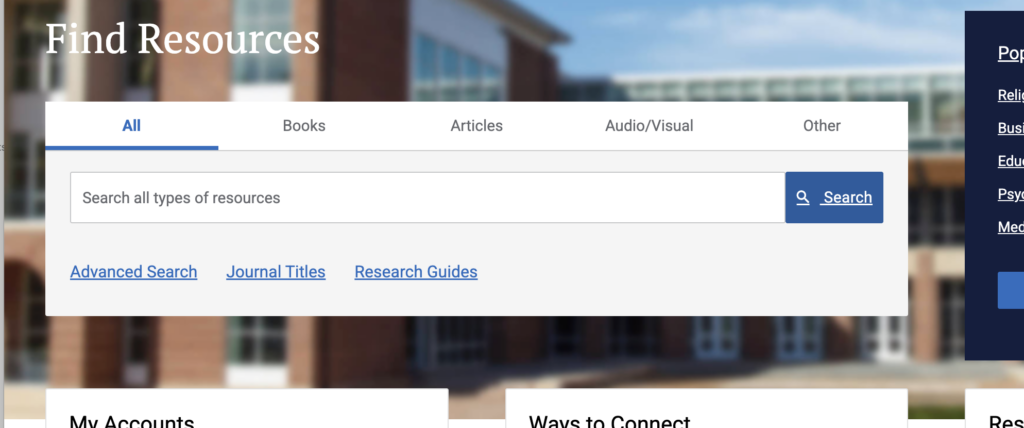
Take a look at the Jerry Falwell Library website. The blue “Search” button works here because clicking it performs a search (the action) based on your search terms (user input). The result is a custom search result page that didn’t exist before. On the other hand, a text link works best to access a pre-made page of Research Guides.
If you’re not sure whether to use a link or a button, contact us via Teams or email. We can help you determine what works best for your page!
Anchor Linking
The anchor tool is used when you want to link to a specific section on a page.
Here’s an example: On the A-Z Index, the letters at the top of the page are linked to that section in the page. When you click on “O-R”, the page jumps down to the beginning of the O-R section. This is convenient because it means you don’t have to scroll all the way down the page yourself. You’ll also notice that after each section is a link to “top” that takes you back to the top of the page, again avoiding scrolling up.
Anchors are useful in situations where you, out of necessity, have a page that’s really long. Anchors make using the page easier on the user. You can put a list of links at the top of your page that refer to the sections tagged with anchors further down the page. Anchors
Anchor links can also be helpful to send users directly to a specific piece of information on a page. For example, if I have a link to tuition information for our BS in Aviation degree, I could link to the residential degree page or I could link directly to the “Tuition & Aid” section of the residential degree page.
Alphabetical lists, FAQ lists, and table of contents are instances when using links within a page are appropriate.
Don’t make long pages that use anchors when you can easily break up the content into separate pages.
How to Add an Anchor Link
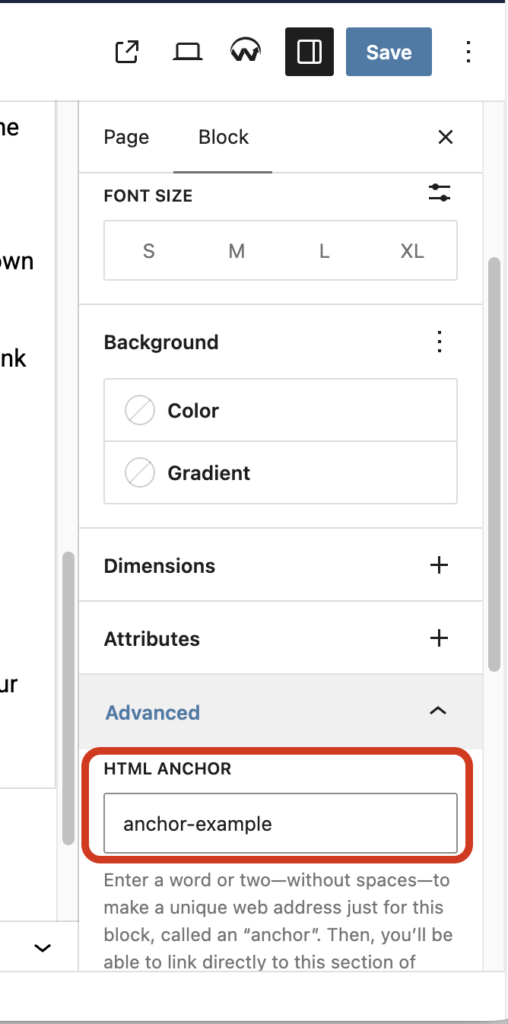
- Input all your content onto the page. Then add your anchors (the spots where the links will jump to) by placing your cursor where you want the anchor to be and opening the “Advanced” dropdown in your block settings sidebar.
- Here you will create an anchor ID by typing it into the “HTML Anchor” text field. We recommend sticking to all lowercase and choosing a one or two word term; using hyphens instead of spaces if needed.
- Then you create a link connected to the text you want to send to your anchor. Highlight your link text, choose the link icon, and (if the anchor is on the same page where you are inserting your link) enter the pound symbol followed by your anchor ID. If the anchor link exists on a different page, you will need to insert the entire page URL followed by the pound symbol and anchor ID.
Replace Outdated Files with New Versions
Save yourself time and inconvenience by replacing outdated files instead of uploading new ones with each change by using the File Replacement Tool.
FAQ Pages
Most often FAQ pages answer basic questions that should already be answered on other pages within your site. Users visit specific pages expecting to find the information they’re looking for.
If users are having a hard time finding an answer on your department’s webpages, it’s time to find out why and then make a change. It’s important to know why your page doesn’t have the answers before we talk about how to fix the problem.
So why aren’t your pages already answering your user’s questions?
- Is your page too complicated? Simplify it.
- Are the answers buried under content ROT? Clean it up.
- Does your page not even have the answer? It should.
Web designer Christopher Mackay describes FAQs in his blog on Tantramar Interactive:
“What an FAQ page says to your visitors: “We could’ve answered your shipping question on the Shipping page, but it’s easier for us to put everything in one place; your convenience is a secondary consideration (if that).”
Don’t rely on an FAQ page to do the job that your regular pages should be doing. However, there are cases when an FAQ page might be needed. Complicated financial aid or admissions processes might benefit from an FAQ page. Still, you should briefly answer the questions on your main page before sending them to an FAQ page or section.